
Target a Badge
Badges can be made available to all of your Members, or they can be targeted to only certain Members. Targeting Badges is managed through the use of Segments and Places.
Segments use logical conditions to define the criteria for a Member's inclusion. Before targeting the Badge based on a Segment, you must first create and publish the Segment with the desired conditions. See Getting Started with Segments for more information.
Places allow you to define geographical places such as stores, restaurants, or kiosks. Before targeting the Badge based on a Place, you must first create and publish the Place. See Getting Started with Places for more information.
Target a Badge Using Segments
To target a Badge based on a Member's inclusion in a Segment:
-
Select Rewards from the top navigation bar, then select Badges > Badges from the side navigation menu. The Badges screen is displayed.
-
Search for and select the desired Badge (see Search for a Badge for more information on the available search options). The Badge Details screen is displayed, with the Definition tab selected by default.
-
Select the Eligibility tab.
-
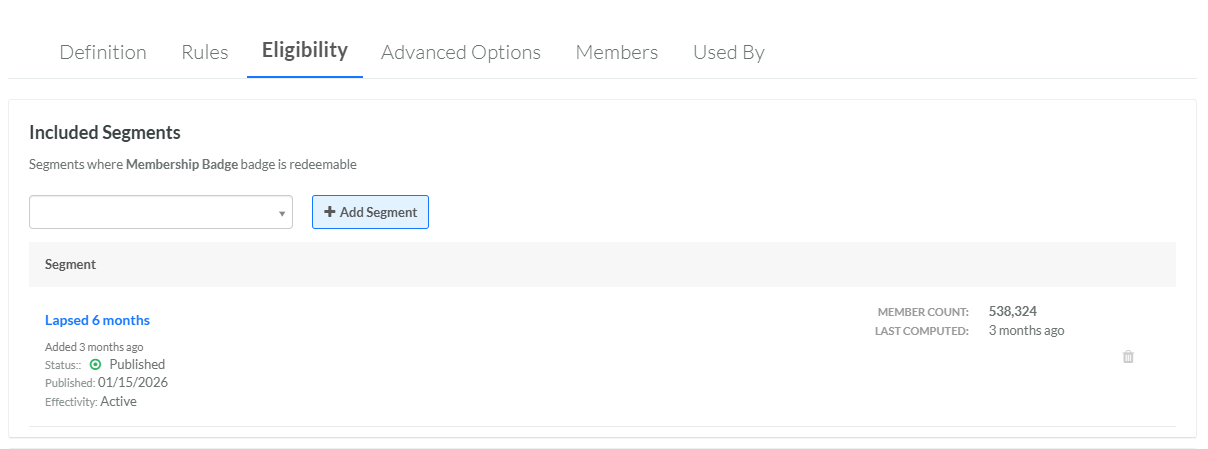
The Included Segments section is used to make the Badge eligible only to Members in the selected Segment (or Segments). In this section, from the drop-down menu, select the desired Segment. Optionally you can type all or part of the Segment name to filter this menu.
-
Click Add Segment. The selected Segment is displayed within the Included Segments section.
-
Repeat the above steps as needed. If you add multiple Segments, a Member must be in only ONE of the selected Segments to be eligible for this Badge. That is, multiple Included Segments are joined with an OR operator.
-
Optionally, to remove an Included Segment, click the Remove icon.
-
The Excluded Segments section is used to make the Badge ineligible to Members in the selected Segment (or Segments). In this section, from the drop-down menu, select the desired Segment. Optionally you can type all or part of the Segment name to filter this menu.
-
Click Add Segment. The selected Segment is displayed within the Excluded Segments section. If you add both an Included Segment and an Excluded Segment to the Badge, the Excluded Segment takes priority. Therefore, if a Member is selected by both the Included and the Excluded Segment, that Member will be ineligible for this Badge.
-
Repeat the above steps as needed. If you add multiple Segments, a Member must be in only ONE of the selected Segments to be ineligible for this Badge. That is, multiple Excluded Segments are joined with an OR operator.
-
Optionally, to remove an Excluded Segment, click the Remove icon.
Target a Badge Using Places
Note: The location eligibility feature is useful only with the Program API endpoints to get Badges. The feature is not supported for use with the Member API.
To target a Badge based on a Place:
-
Select Rewards from the top navigation bar, then select Badges > Badges from the side navigation menu. The Badges screen is displayed.
-
Search for and select the desired Badge (see Search for a Badge for more information on the available search options). The Badge Details screen is displayed, with the Definition tab selected by default.
-
Select the Eligibility tab.
-
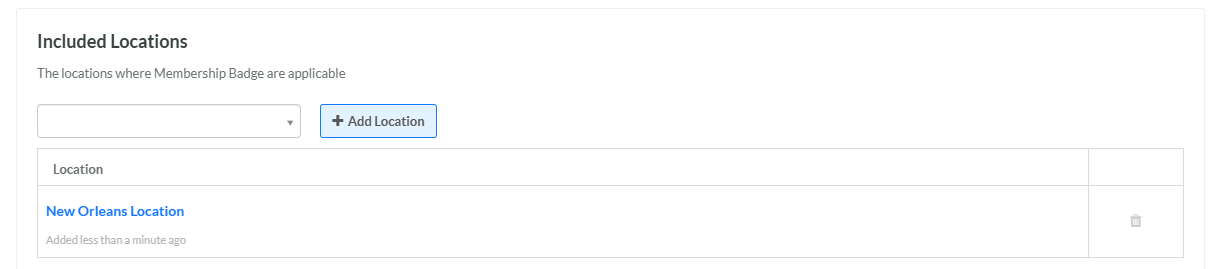
The Included Locations section is used to make the Badge eligible only to specified Places. In this section, from the drop-down menu, select the desired Place. Optionally you can type all or part of the Place name to filter this menu.
-
Click Add Location. The selected Place is displayed within the Included Location section.
-
Repeat the above steps as needed. If you add multiple Places, the Places are joined with an OR operator.
-
Optionally, to remove an Included Place, click the Remove icon.
-
The Excluded Locations section is used to make the Badge ineligible at a selected Place (or Places). In this section, from the drop-down menu, select the desired Place. Optionally you can type all or part of the Place name to filter this menu.
-
Click Add Location. The selected Place is displayed within the Excluded Locations section.
-
Repeat the above steps as needed. If you add multiple Places, the Places are joined with an OR operator.
-
Optionally, to remove an Excluded Location, click the Remove icon.
